Quick Tour of the Window
Get familiar with the Linkage workspace and the tools you’ll use to build and run mechanisms.
Linkage Window
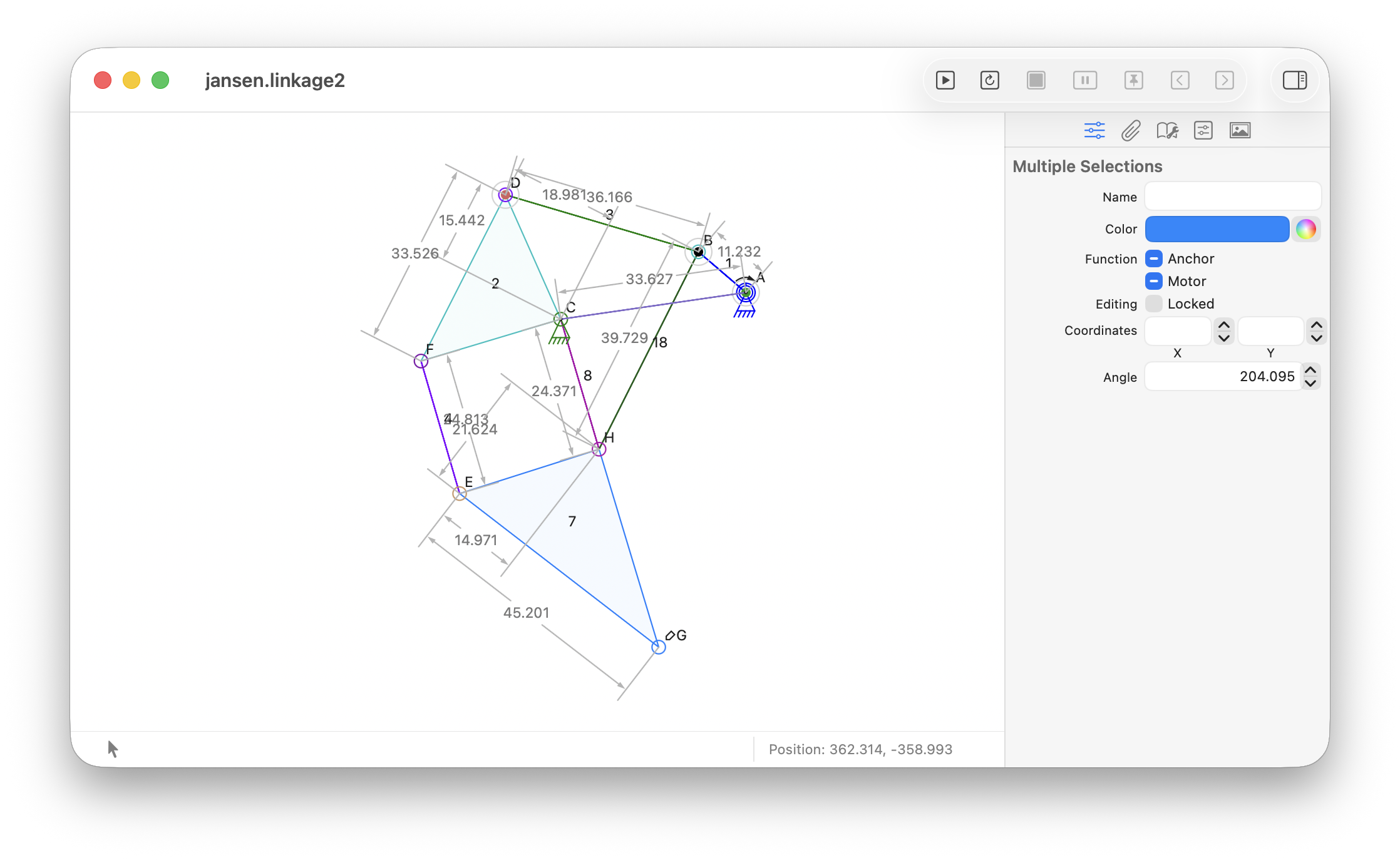
The Linkage window is organized into the toolbar, editor, sidebar, and status bar.
Toolbar
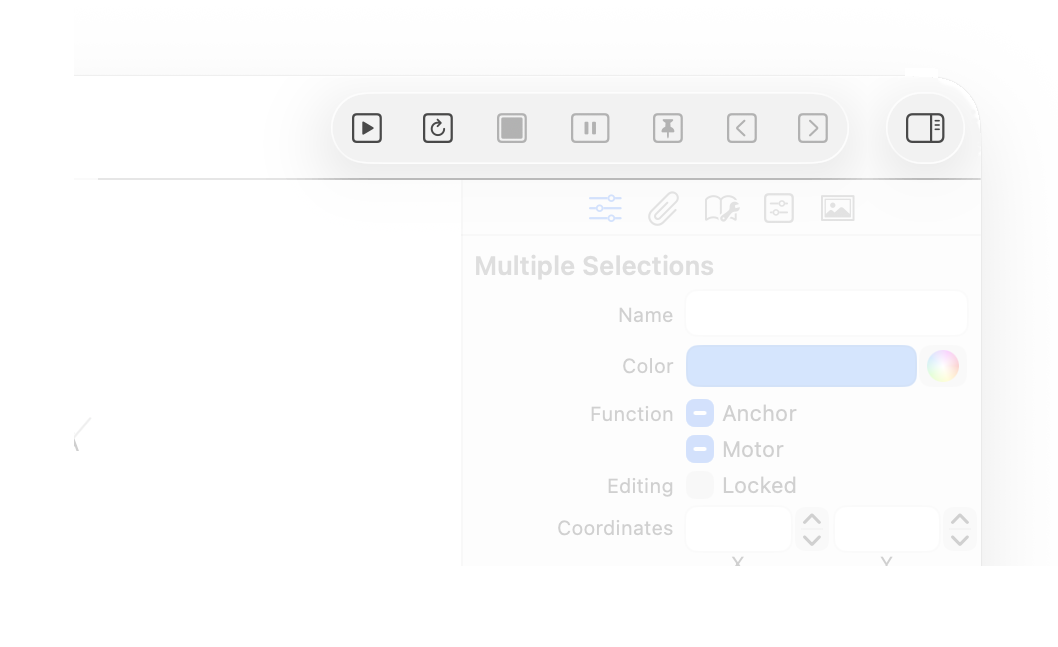
The toolbar provides controls for running and interacting with the simulation, along with a button for showing or hiding the sidebar.
Editor
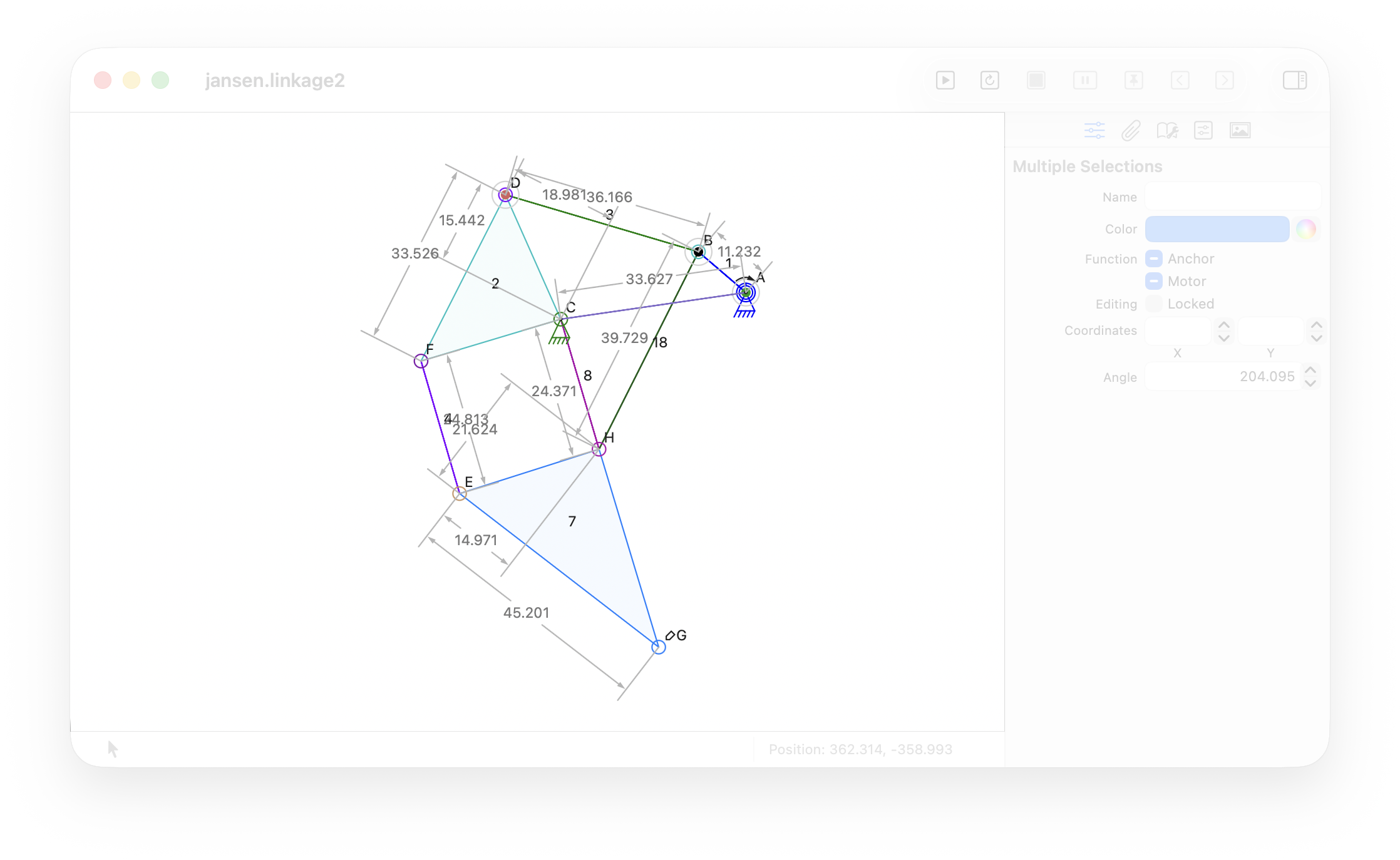
The editor is the main workspace where you build and interact with your mechanism. Add elements and mechanical components, then select, move, and arrange them directly using the mouse.
Sidebar
The sidebar contains panels for selecting elements, changing their properties, adding new elements, and accessing other controls for the mechanism.
Properties
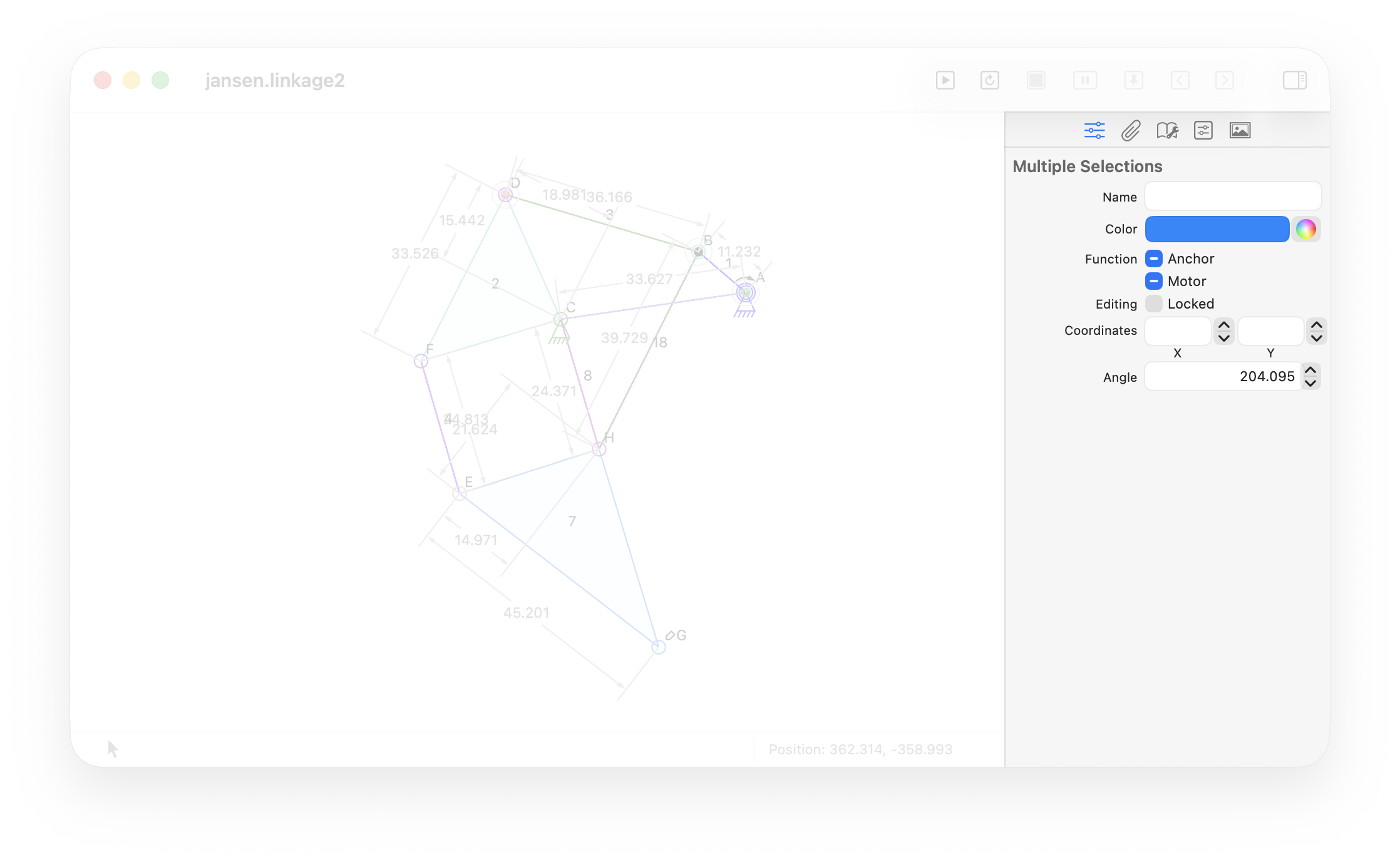
The Properties panel shows properties shared by the selected elements, with controls for changing their appearance and other settings. Additional controls appear for relationships such as angles and gear ratios.
Selections
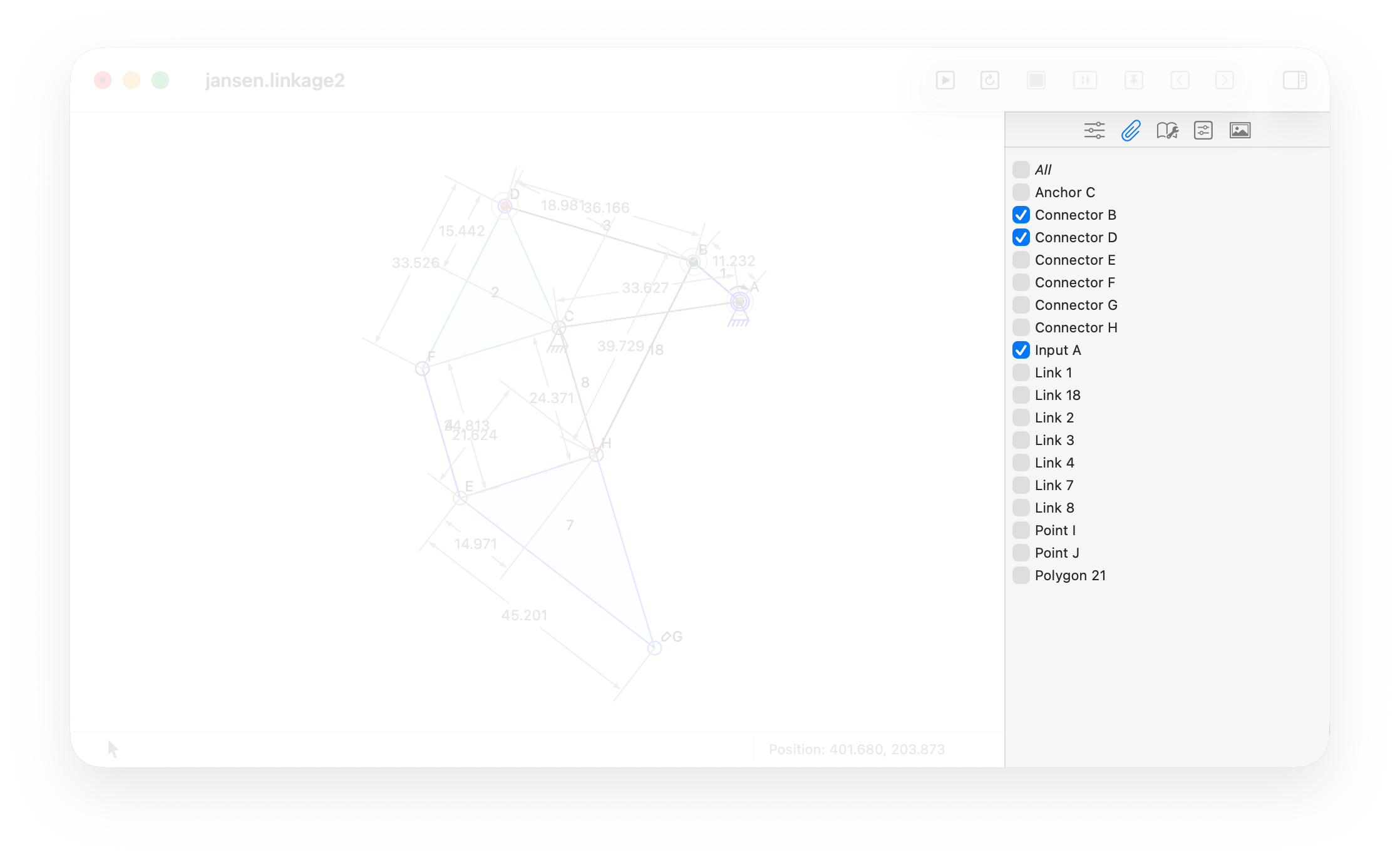
The Selection panel lists all elements in the mechanism and shows which ones are currently selected. Use the checkboxes to select individual elements or all elements at once.
Library
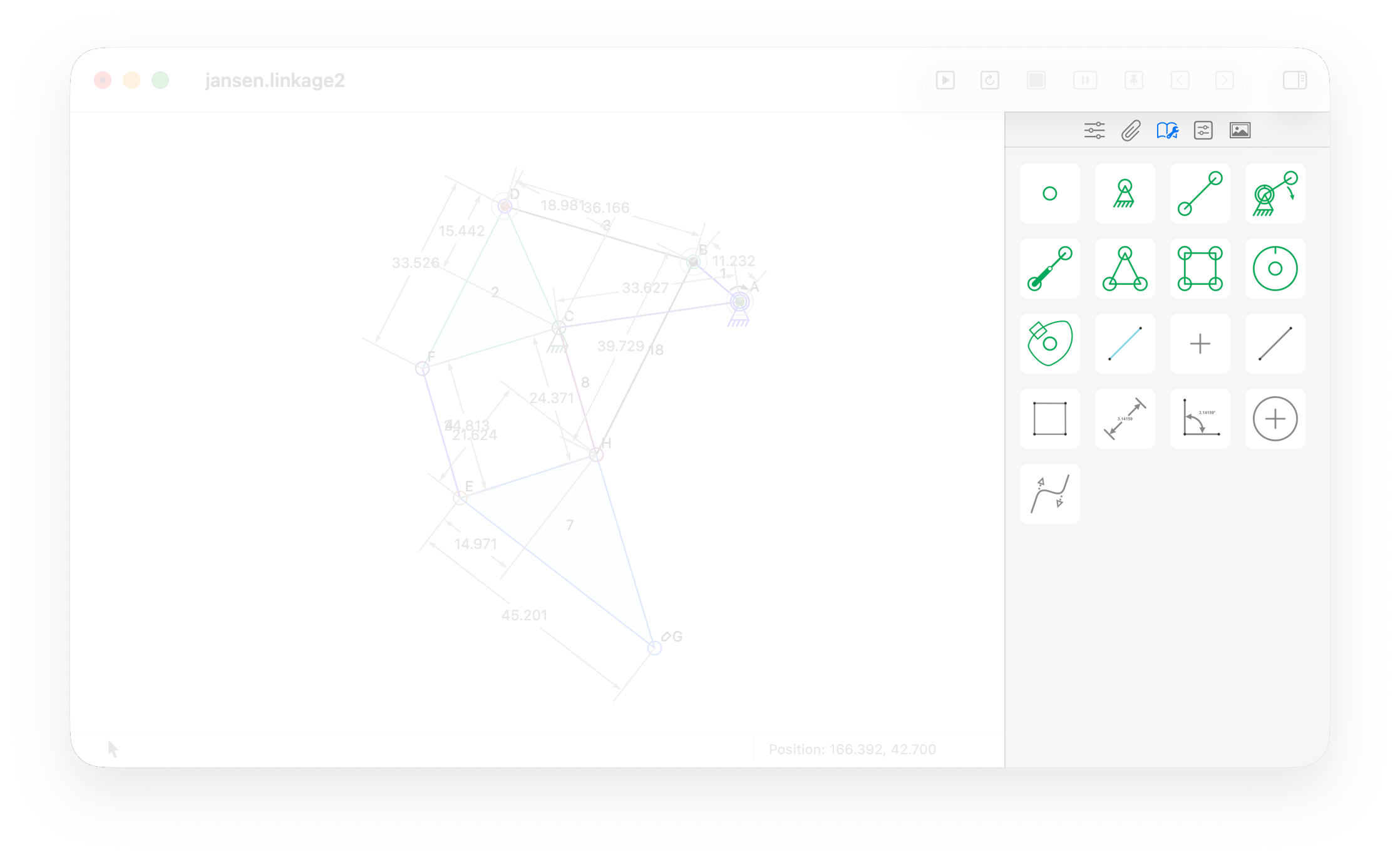
The Library panel provides elements and mechanical components that you can drag into the editor to add them to your mechanism.
Simulation Controls
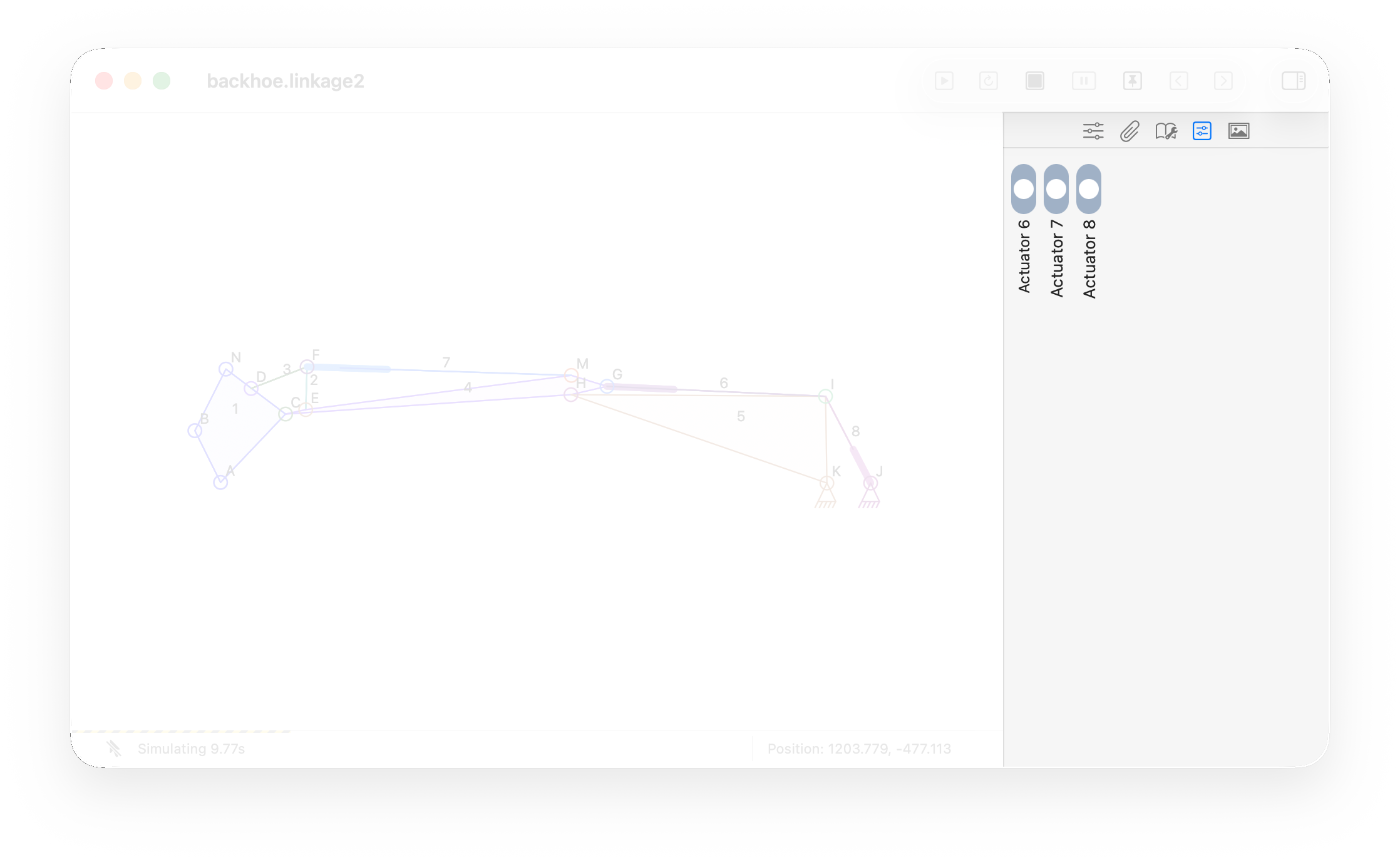
The Simulation Controls panel lets you operate manually controlled elements while the simulation is running.
Background Properties
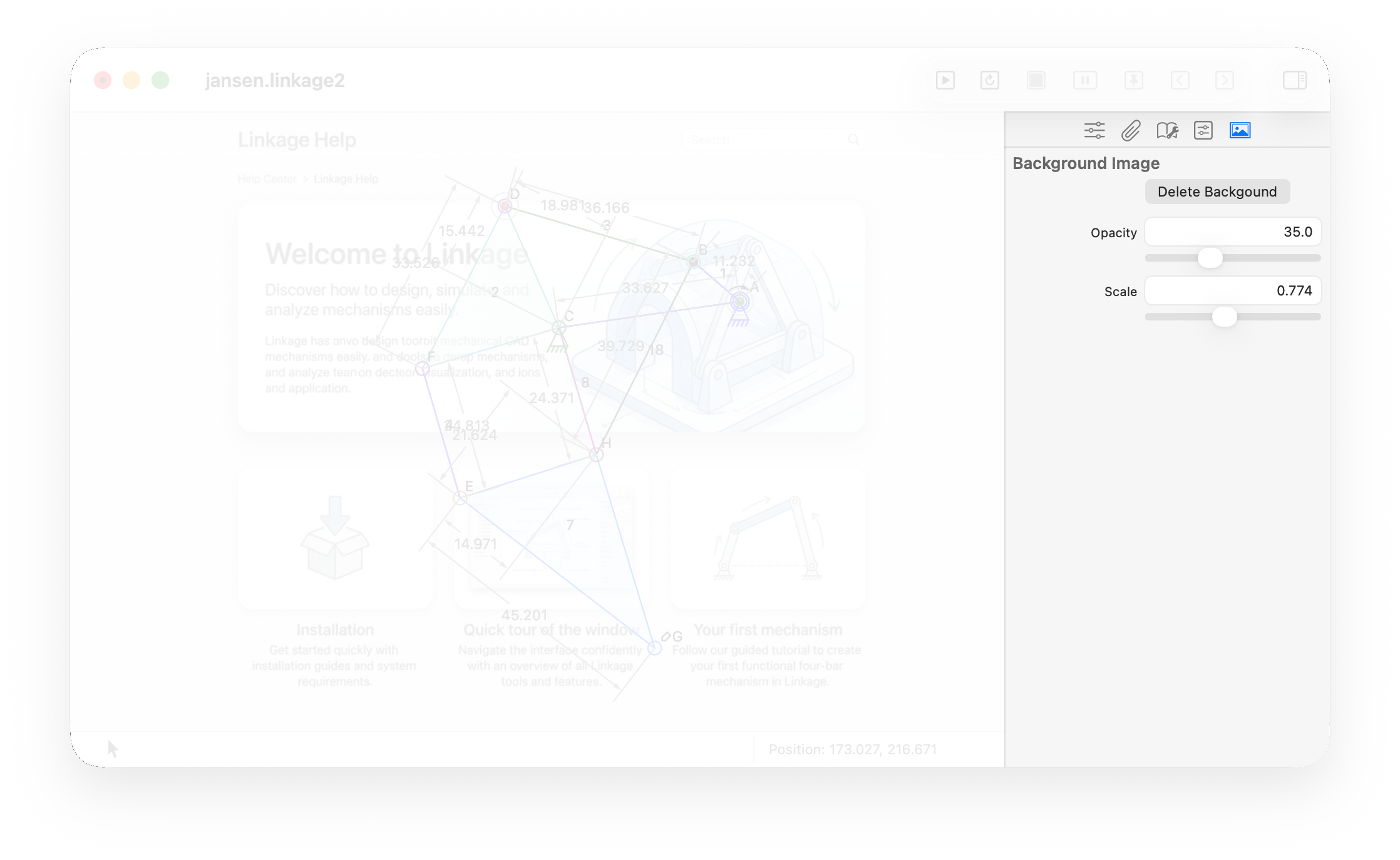
The Background Properties panel lets you adjust the scale and opacity of the background image or remove it from the mechanism.
Status Bar
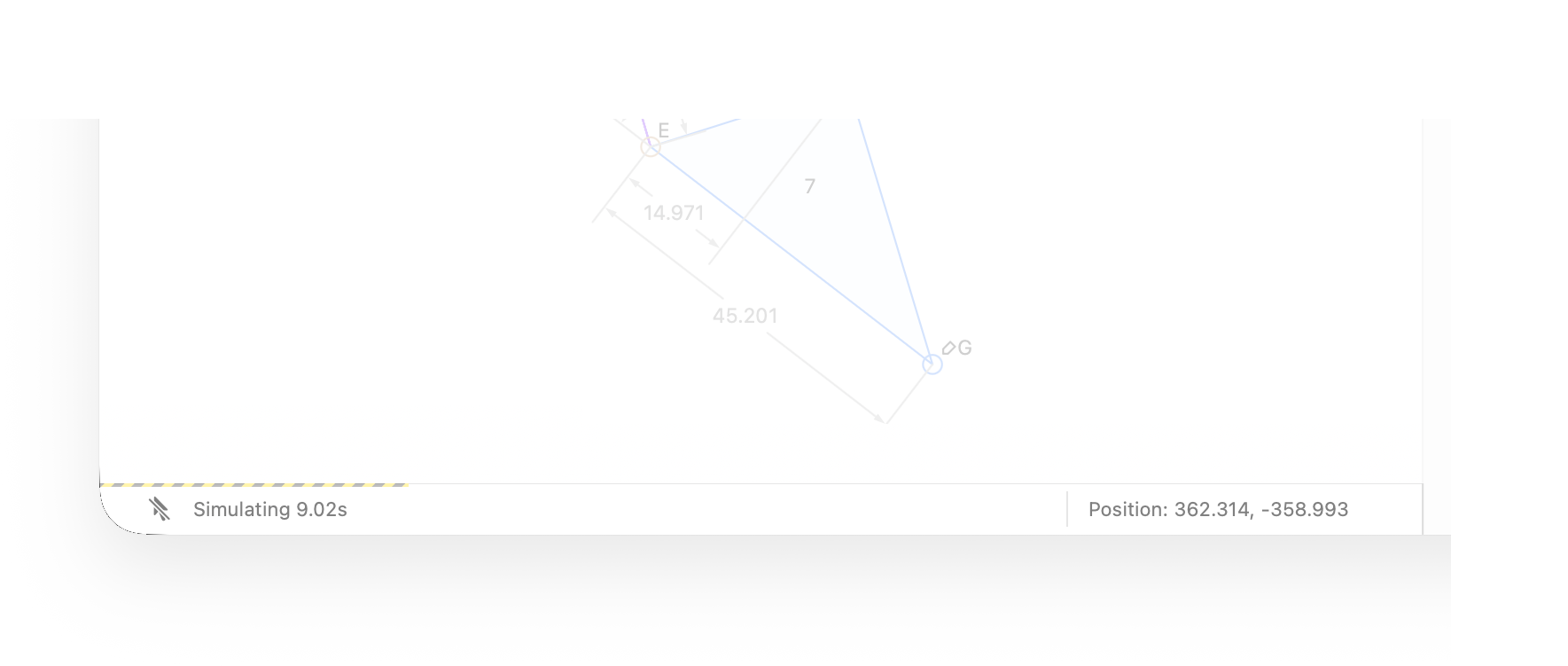
The status bar displays information about the current simulation, mouse position, and other important status or error information.