Selecting Elements
Elements can be selected in several ways using the mouse, keyboard, and Selections panel.
Selecting an Element
Click an element in the editor to select it. Any previously selected elements are automatically deselected.
Links can be selected by clicking anywhere inside the area formed by their connectors. Gears and circles can be selected by clicking inside them, and splines can be selected by clicking within their enclosed area.
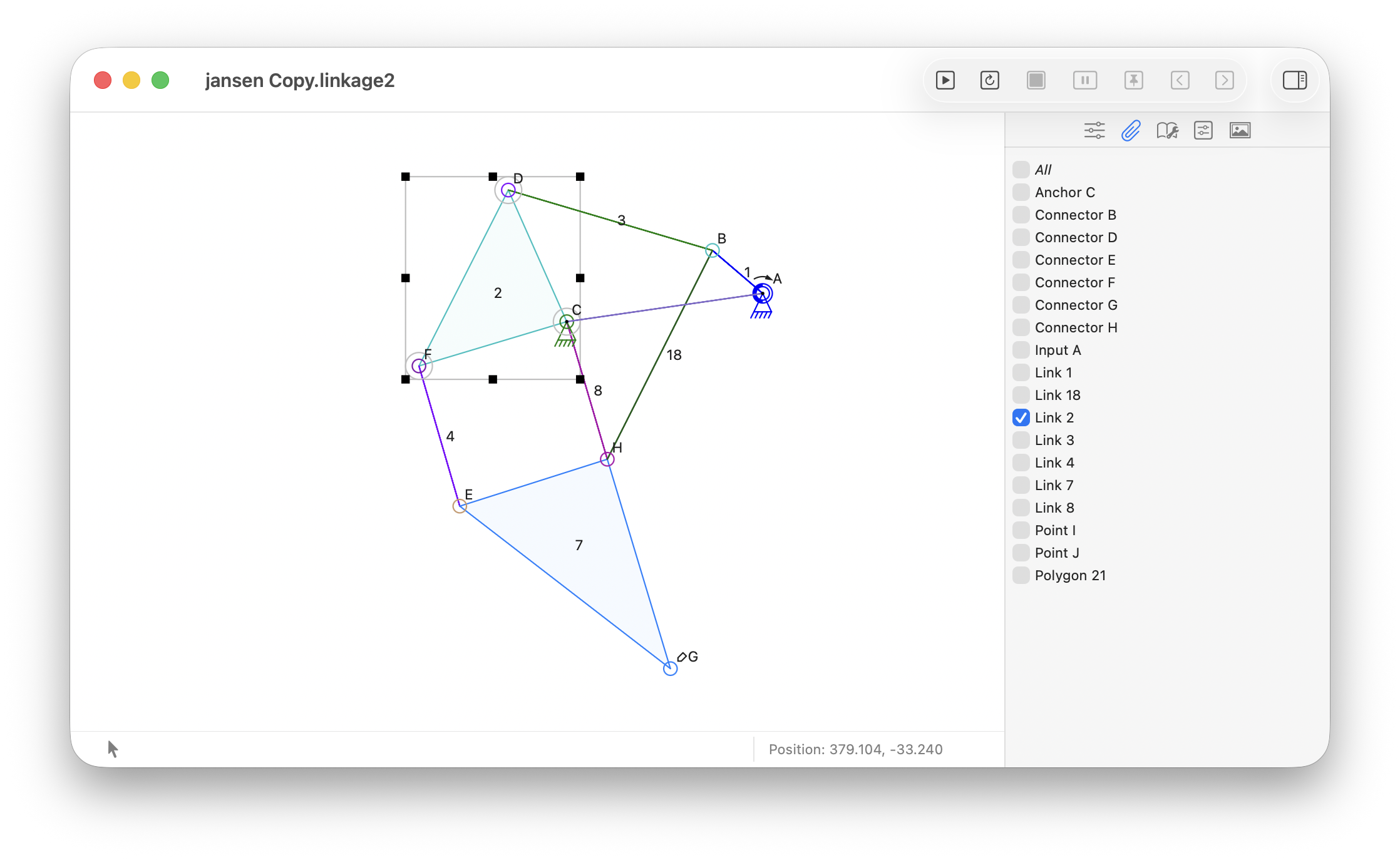
A selected link within a mechanism
Tip: When elements overlap, Linkage gives priority to the more specific element under the pointer. For example, clicking a connector that lies on a link selects the connector rather than the link. When two links overlap, clicking a boundary selects the link that owns that boundary.
Selecting Multiple Elements
Hold down the Command ⌘ or Shift key while clicking an element to add it to the current selection. Elements that are already selected remain selected.
To remove a single element from the selection, continue holding Command ⌘ or Shift and click the selected element again. The other selected elements are not affected.
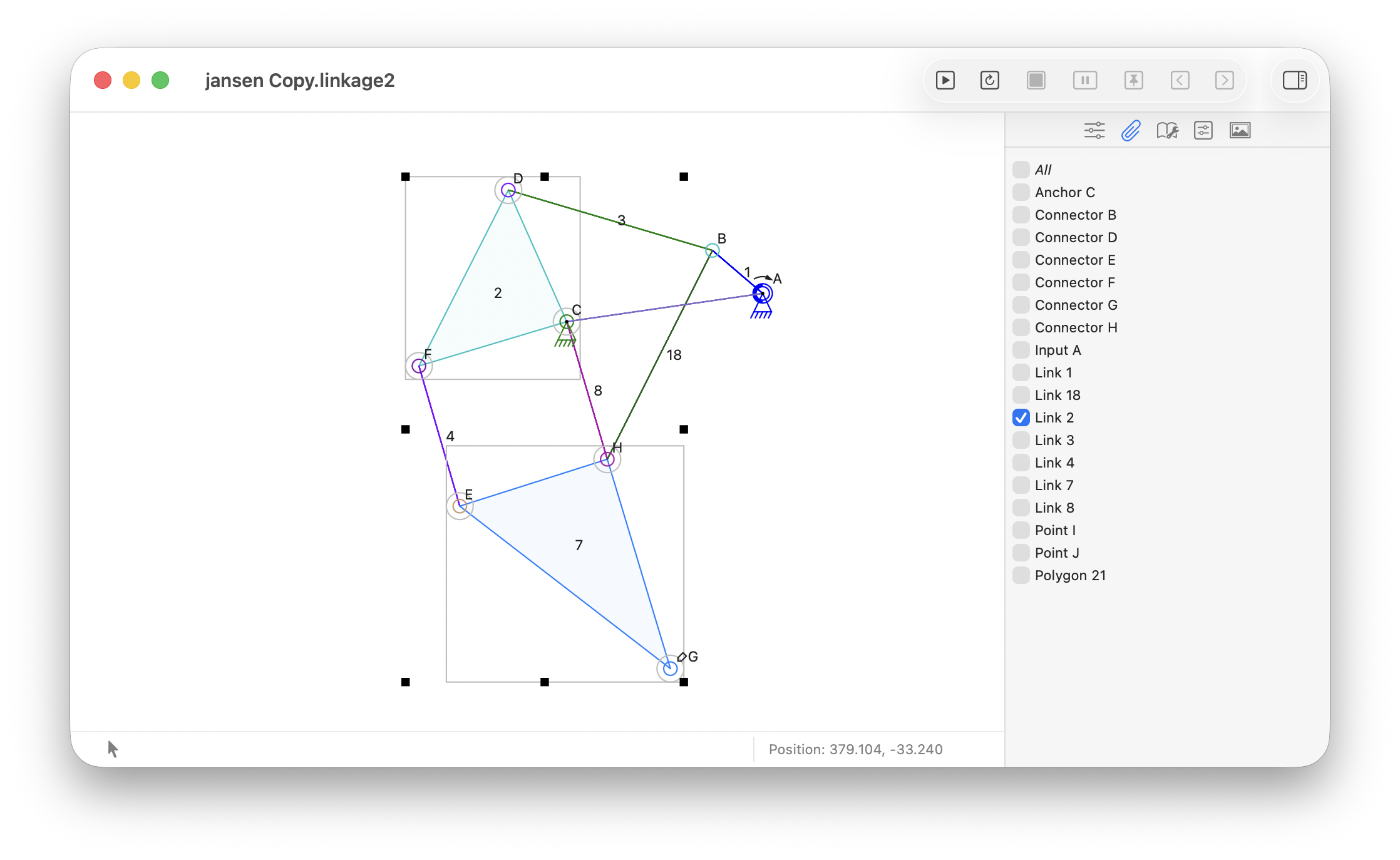
Multiple selected links within the mechanism
Selecting Elements with a Selection Box
To select a group of elements, click and drag from an empty area of the editor. A selection box appears as you drag. Release the mouse button or trackpad to select the elements within the box.
The Command ⌘ and Shift keys do not modify selection-box behavior.
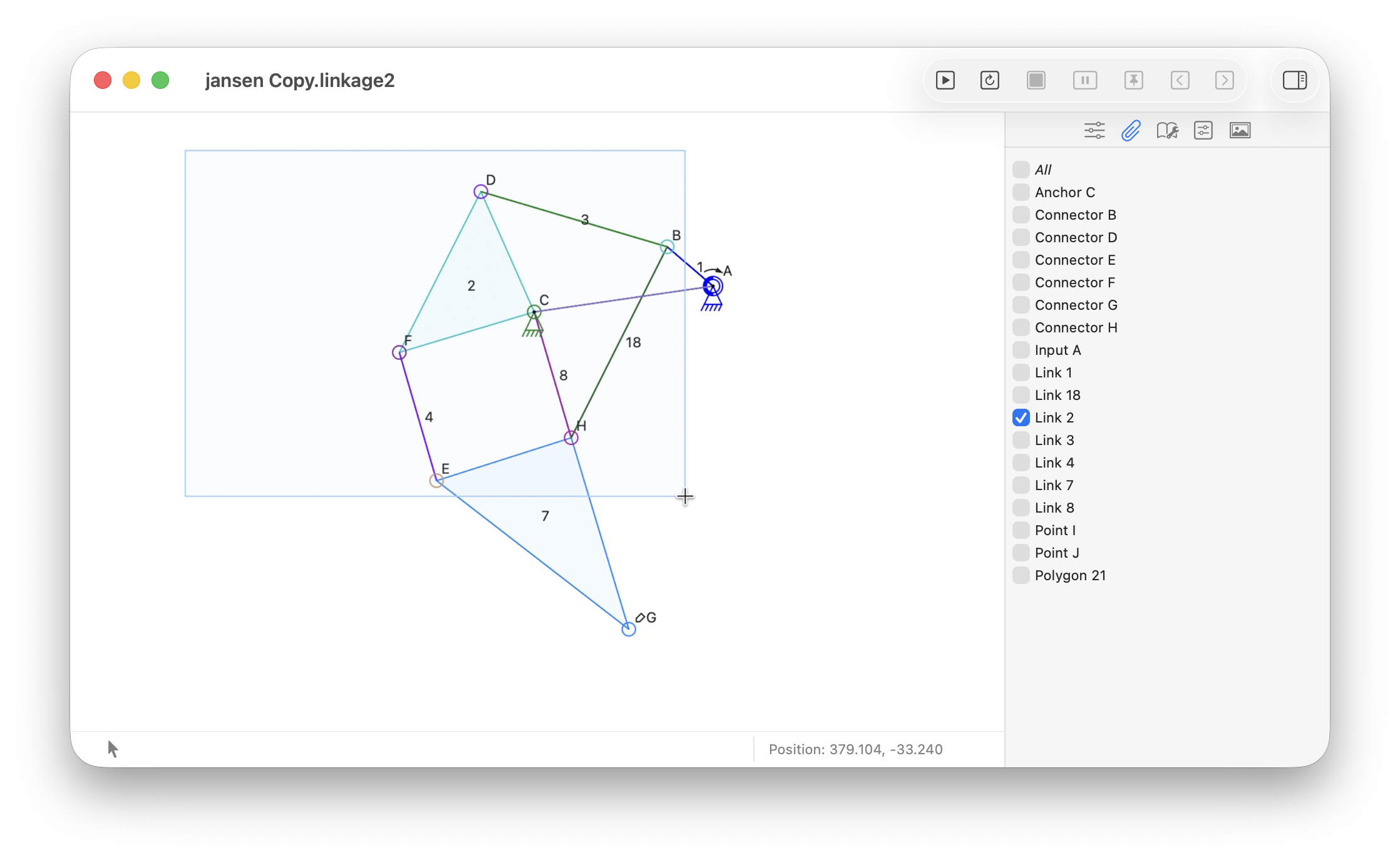
The selection box dragged to select multiple elements
Using the Selections Panel
The Selections panel in the sidebar provides another way to select elements. Click the Selections button at the top of the sidebar to display the panel.
The panel contains a checkbox for every element in the mechanism. Select or deselect an element by clicking its checkbox.
The All checkbox can be used to select or deselect all elements at once.
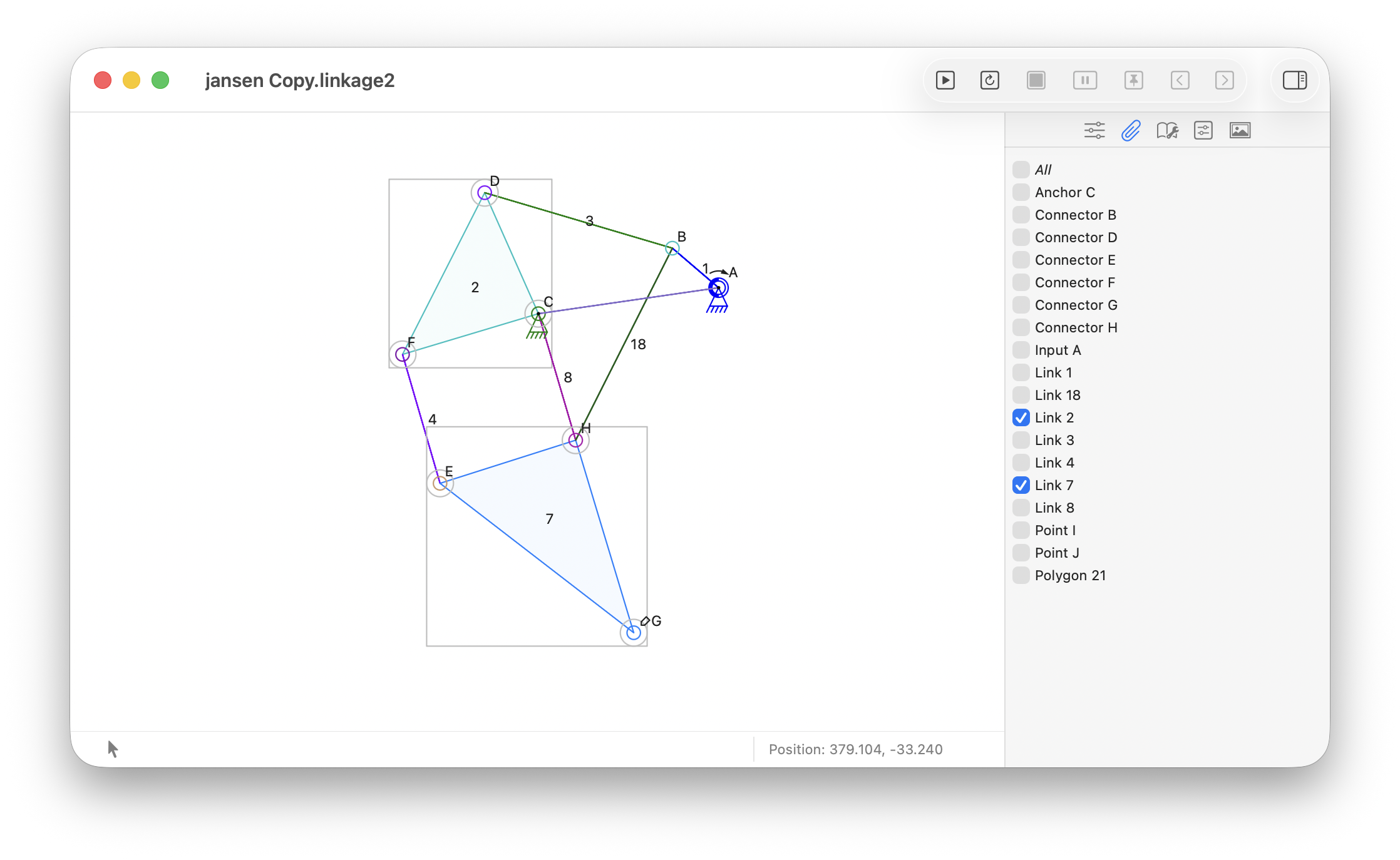
The Selection panel in the sidebar shows checkmarks on all selected elements