View & Display Options
Most display options are available from the View menu. Additional mouse and trackpad gestures can be used to zoom and navigate the editor.
Zoom and Navigation
Zooming
Zoom in or out using ⌘+ and ⌘−, the mouse touch surface, or a pinch gesture on a trackpad.
Panning
Pan around the editor by right-clicking and dragging with the mouse, or by sliding two fingers on a trackpad.
Zoom to Fit
Adjust the zoom to fit the entire mechanism in the editor.
Grid and Measurements
Grid
Displays evenly spaced grid lines behind the contents of the editor to help with positioning and alignment.
Grid Size
Set the horizontal and vertical spacing for the grid.
Units
Select Inches, Millimeters, or Meters as the units for the current mechanism.
Tip: Grid spacing and other measurement values use the units selected for the current mechanism.
Auto Dimensions
Show or hide the automatically generated dimensions for all elements in the mechanism.
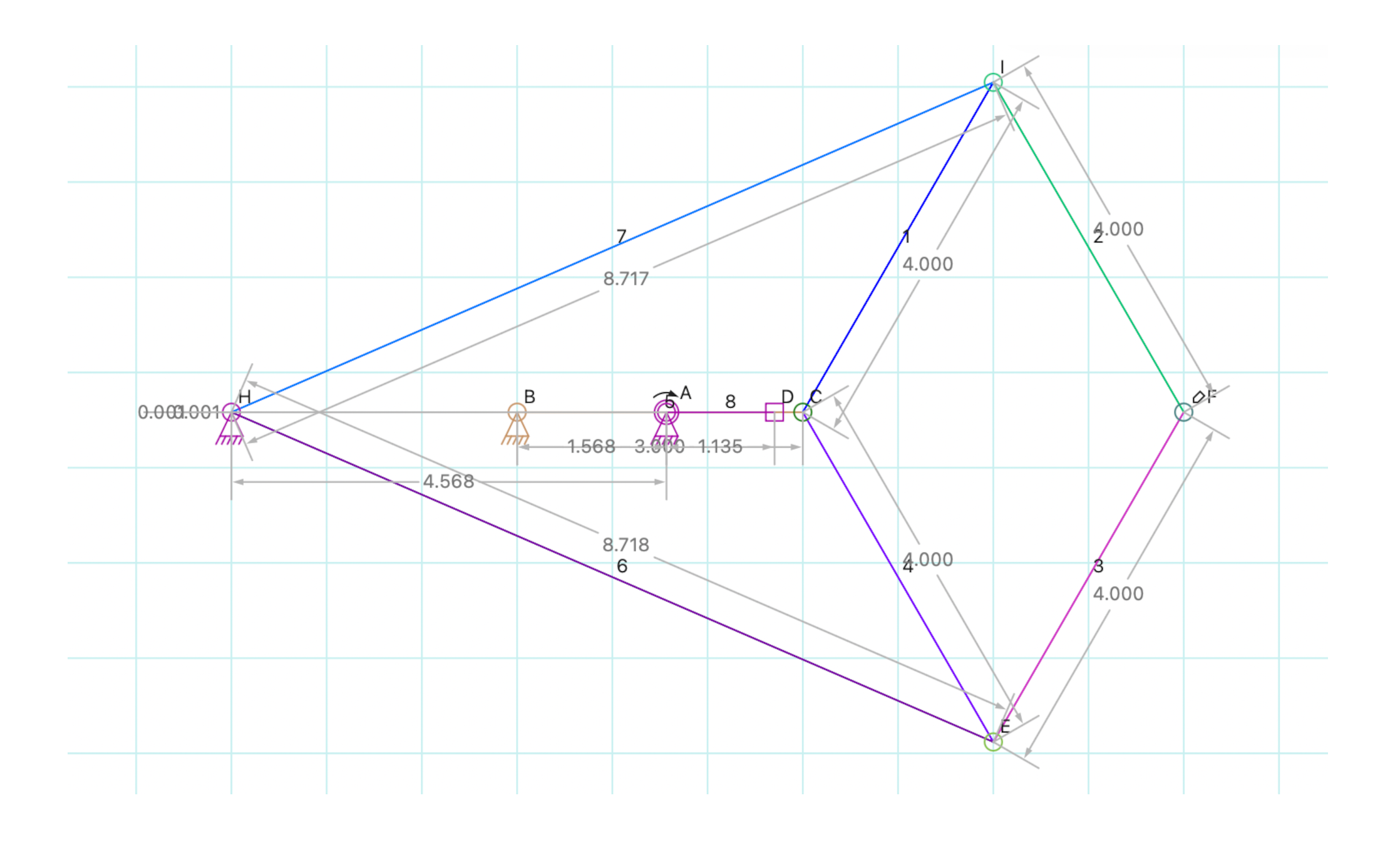
A mechanism with the grid and automatic dimensions visible.
Showing and Hiding Content
Labels
Show or hide labels and annotations that identify elements in the editor.
Show Mechanism
Show or hide the mechanical components of the mechanism, including links, connectors, gears, and other moving parts.
Show Drawing
Show or hide drawing elements such as lines, points, splines, and measurements.
Show Background
Show or hide the mechanism's background image without removing it from the document.
Hints
Show or hide visual guides that indicate how selected elements will be positioned when using alignment and arrangement commands.
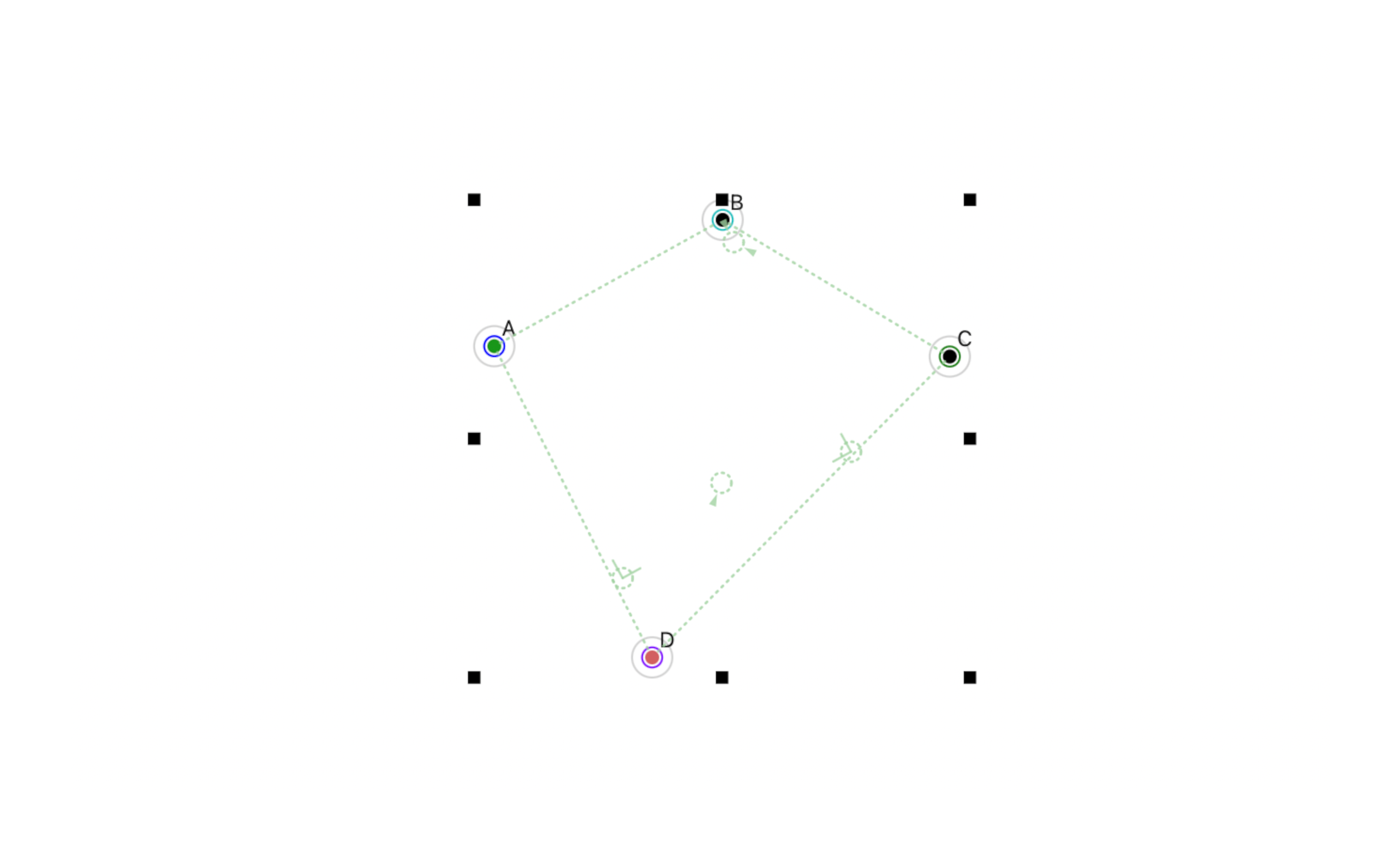
Hints for four selected connectors
Video Area
Show or hide the boundary of the area captured when exporting a video.
Window Layout
Show Status Bar
Show or hide the status bar at the bottom of the editor window.
Show Sidebar
Show or hide the sidebar on the side of the editor window.
Sidebar Panel
Select which of the various sidebar panels is visible in the sidebar.